
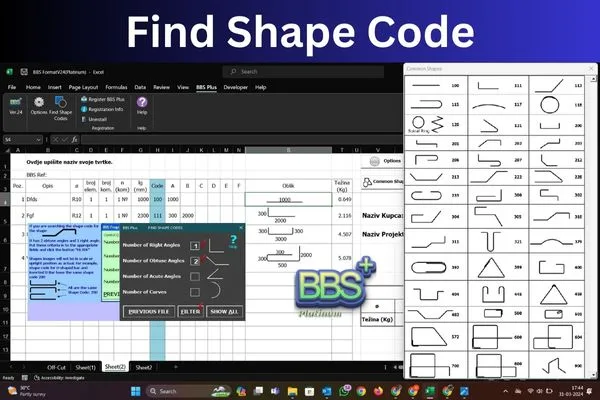
Discovering the right shapes for reinforcement detailing is a critical aspect of construction projects. In BBS Plus, the ultimate Bar Bending Schedule Software, users have access to advanced tools to find shape code, which revolutionizes the process of shape selection. With its customizable filtering options and comprehensive display of shape codes, the shape code finder offers users unparalleled precision and efficiency in finding the perfect shapes for their projects. In this article, we’ll discuss two methods to find the Shape Code to make informed decisions and streamline their reinforcement detailing processes.
Floating Window

In BBS Plus, users can conveniently find shapes using the floating window feature. This tool provides easy access to a wide range of commonly used shape codes, making it effortless to select the appropriate shape for Bar bending schedule. Here’s how to utilize the floating window:
Accessing the Floating Window: To access the floating window, you can click the button “Common Shapes” in BBS Format file. Once there, you will find the floating window named Common Shapes, which contains a comprehensive list of shape codes along with their corresponding Code.
Selecting a Shape: Each shape listed in the floating window is identified by a unique shape code. You can simply note the shape code number corresponding to the desired shape. There are 42 commonly used shape code you can find in this floating window.
Entering the Shape Code: After identifying the desired shape, You can enter the corresponding shape code number into the designated column. In the BBS format sheet, you will find a column labeled “Code” where you can input the shape code. This step enables the software to automatically insert the selected shape into the BBS sheet.
Customizing Dimensions: In addition to selecting shapes, you can enter various dimensions to customize the reinforcement detailing according to project requirements. The software provides columns labeled A, B, C, and so on, allowing you to input specific dimensions.
Read More: Installation and Registration of BBS Plus
Find Shape Codes

If you cannot find your desired shapes in the floating window, then there is another option to find the shape code. This offers a more detailed and customizable approach to shape selection. Here’s how to utilize the shape code finder:
-
Accessing the Shape Code Finder: To access the shape code finder, you navigate to the “BBS Plus” tab in the software’s interface. Within the tab, you will find the “Find Shape Codes” button in the ribbon, which allows for precise filtering based on specific criteria.
-
Filtering Shape Codes: The shape code finder enables users to filter shapes based on various parameters such as the number of right angles, acute angles, obtuse angles, and curves. By specifying these criteria, you can narrow down the list of available shapes to find the most suitable option for your reinforcement detailing needs.
-
Viewing Available Shapes: Upon applying the desired filters, you can view the list of shapes that match the specified criteria. The shape code finder provides a comprehensive display of shape codes, allowing users to make informed decisions when selecting shapes for their projects. To view all the shapes click “Show All”, this will display all the available shapes in the working shape.
-
Selecting a Shape: Similar to the floating window, You can identify their desired shape by noting the corresponding shape code number. Once the desired shape is identified, you can proceed to enter the shape code number into the designated column in the BBS format sheet.
-
Entering the Shape Code: In the BBS format sheet, you will find a column labeled “Code” where you can input the shape code obtained from the shape code finder. Upon entering the shape code, the software will automatically insert the selected shape into the BBS sheet, streamlining the reinforcement detailing process.
-
Customizing Dimensions: As with the floating window, you have the option to customize dimensions by entering specific values for length, width, diameter, and other parameters. This level of customization ensures that the reinforcement detailing aligns perfectly with the project requirements.
Shop Now: BBS Plus Platinum Edition
Both options to find the Shape Code are available in all the edition of BBS Plus (Silver, Gold, Platinum). The floating window displaying commonly used shape codes, allowing users to quickly access and select shapes for their projects without navigating through multiple menus. This feature enhances productivity and efficiency in reinforcement detailing.
Users can easily find shape codes based on specific angles and curves using the “Find Shape Codes” feature in BBS Plus Platinum. This functionality streamlines the process of selecting the appropriate shape for reinforcement detailing, saving users valuable time and effort.
Frequently Asked Questions (FAQ) on BBS Plus
BBS Plus Platinum intelligently manages off-cut rebar from previous optimizations by storing them in an off-cut sheet. When running the optimization process again, the software first checks the off-cut sheet and utilizes available rebar before searching in the full-length bar. This minimizes wastage and maximizes resource efficiency on-site.
Yes, users can customize templates for bar bending schedules and tags in BBS Plus Platinum. This feature allows for personalized detailing according to project requirements, enhancing efficiency and accuracy in documentation.
BBS Plus is available in different editions, including Silver, Gold, and Platinum. Each edition offers varying levels of functionality and customization options. The Platinum edition provides the most comprehensive set of features, while the Silver edition offers basic functionality.
Yes, BBS Plus Platinum is suitable for both beginners and experienced professionals. With its intuitive interface and user-friendly design, the software is easy to navigate and use, making it accessible to users of all skill levels.
The shape code finder feature in BBS Plus enhances productivity in reinforcement detailing by allowing users to easily find shape codes based on specific angles and curves. This streamlines the process of selecting the appropriate shape for reinforcement detailing, saving users valuable time and effort.






1 comment
Really useful article. I love BBS Plus.